Event settings
Turn events on, connect registrations to the CRM, decide how long details are kept, and set up your websites and own address.
Open Settings → Events. Everyone in the team can look; only workspace owners and admins can change these settings.
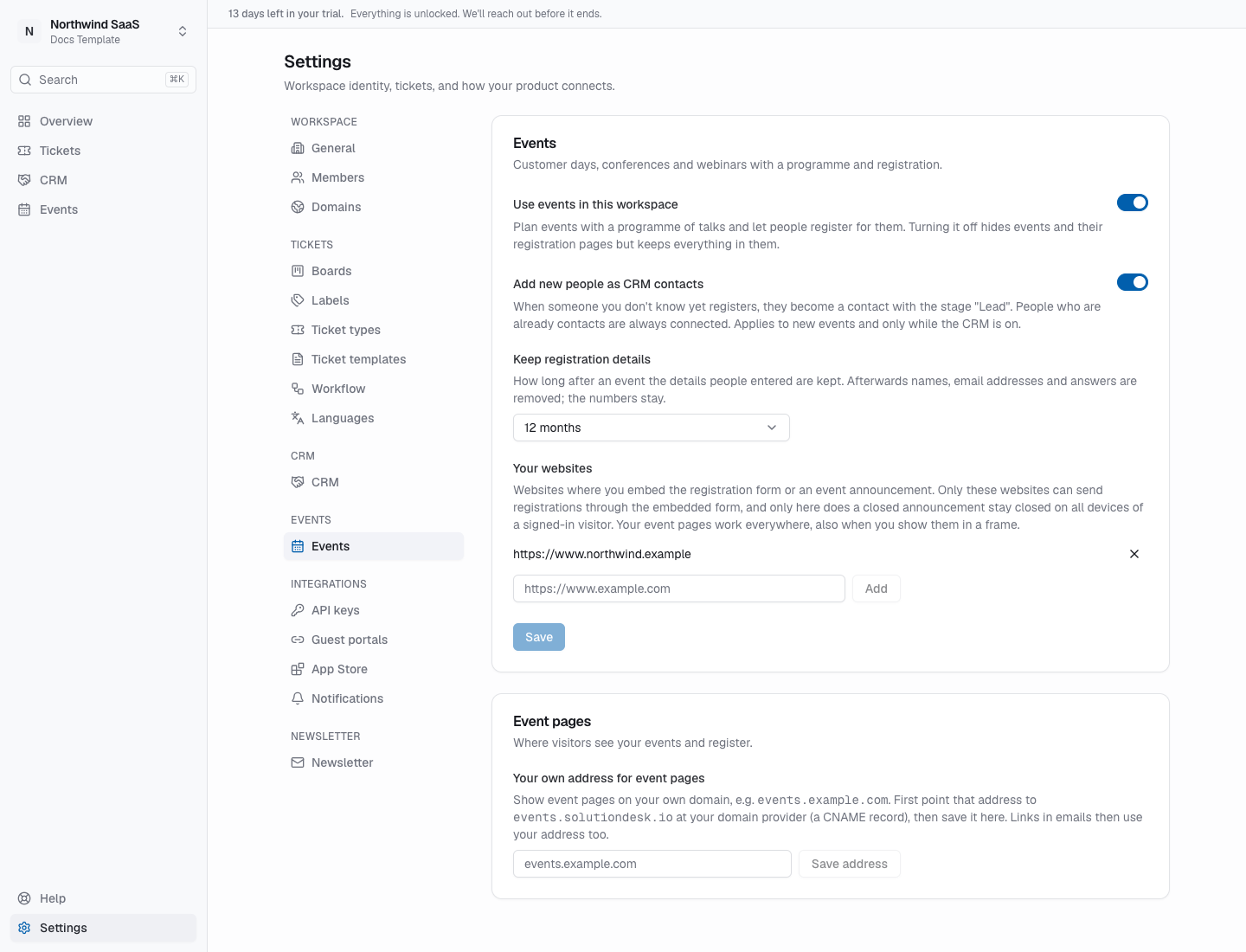
Turn events on or off
Use events in this workspace adds Events to the sidebar for your whole team. Click Save.
Turning it off hides events and their pages again but keeps everything in them — switch it back on and all is there again.
Add new people as CRM contacts
When someone you don't know yet registers, they become a CRM contact with the stage Lead. People who already are contacts are always connected, and the events they registered for show on their contact.
This is the default for new events; each event can change it under Registration settings. It only works while the CRM is on.
Keep registration details
How long after an event the details people entered are kept: 6 months, 12 months, 2 years or 3 years. Afterwards names, email addresses and answers are removed automatically; the numbers — how many registered and attended — stay.
Your websites
If you put the registration form or an announcement on your own website, add its address here, e.g. https://www.example.com, and click Add, then Save. Only secure (https://) addresses are accepted.
- Registering through the embedded form only works from these websites.
- A closed announcement only stays closed on all devices of a signed-in visitor on these websites.
- Showing your published events works everywhere, also when you show the event page in a frame.
Add every address your website runs under, e.g. both https://www.example.com and https://example.com.
Your own address for event pages
Under Event pages, show your event pages on your own domain, e.g. events.example.com:
- At your domain provider, create a CNAME record for that address pointing to
events.solutiondesk.io. - Enter the address here and click Save address.
From then on the event pages, the Copy link button and the links in registration emails use your address.
Languages
The languages an event can be offered in are your workspace's languages under Settings → Languages. Which of them each event uses is set on the event — see Events → Languages.