Accounts & contacts
Keep the companies and people you sell to, link them to your support customers.
Accounts are the companies your team sells to or works with. Contacts are the people there. Both are CRM records for your team — separate from the support companies and users your customers' portal is built on, but linkable to them.
Accounts
Open CRM → Accounts. The list shows each account's name and domain, Stage, Owner, Support customer (whether it's linked), your own fields marked for the list, and when it was last updated.
Filter by search text, stage, owner, support status (Linked to support / Not linked) and your own fields.
Create an account
Click New account. Only Name is required; you can also set Stage, Owner, Domain, Website, Phone, Industry, Employees and any required fields of your own. You can also press Cmd/Ctrl+K, type the name and choose New account.
No accounts yet? The empty list offers Import from a spreadsheet to owners and admins — see Import.
Stages
Accounts and contacts move through the same stages: Lead, Qualified, Opportunity, Customer, Churned, Partner and Other. Change the stage and owner right in the header of the account page; they save immediately.
The account page
- Header — name, domain and website, Stage and Owner.
- Support customer — linked or not (see below), with open tickets, all tickets and portal users while linked.
- Overview — the account's timeline: notes, calls, meetings and tasks, the tickets the linked customer opens and stage changes of the account's deals. Add notes, calls, meetings and tasks right there — see Activities.
- Deals, Meetings, Tickets, Contacts and Files tabs.
- Details panel — the remaining fields and your own fields, grouped into sections. Click Save after changes.
Delete account (in the details panel, owners and admins only) removes the account and its files for good. A linked support customer, its tickets and its people stay as they are.
Two accounts for the same company? See Duplicates.
Files
Keep contracts, offers, signed documents and price sheets with the account on its Files tab.
- Open the account and click Files.
- Drop files onto the area, or click it to choose — several at once is fine. Each file can be up to 25 MB.
The list shows each file's name, size, who added it and when, and the account's timeline notes File added: …. Click a file (or its download icon) to download it.
- Only your team sees these files. They never appear in the portal, a guest portal, customer emails or through your product's integration.
- Everyone on the team can add files. Only owners and admins can delete one — click the bin icon, then Delete file. A deleted file can't be restored.
- Deleting the account deletes all its files with it. Merging the account into another moves its files over.
Link to a support customer
An account can be linked to one support company, and each company to one account.
- On the account page, in the Support customer card, click Link to a support customer.
- Search for the company and pick it. Companies already linked to another account show Linked to … and can't be picked.
From then on:
- The Tickets tab lists the customer's tickets (switch on Show archived to include archived ones).
- The timeline shows when they open tickets.
- The Contacts tab offers their portal users as contacts (see below).
- Every ticket of that company shows the In your CRM card to your team (details).
- An account in stage Lead, Qualified or Opportunity becomes a Customer.
Tickets that a customer's own team is still handling in their portal (two-tier support) don't show up in the CRM until they are escalated to you.
Change picks another company; Unlink removes the link. The account stops showing their tickets and people — nothing in support changes. Open company jumps to the company under Tickets → Companies.
Link suggestions
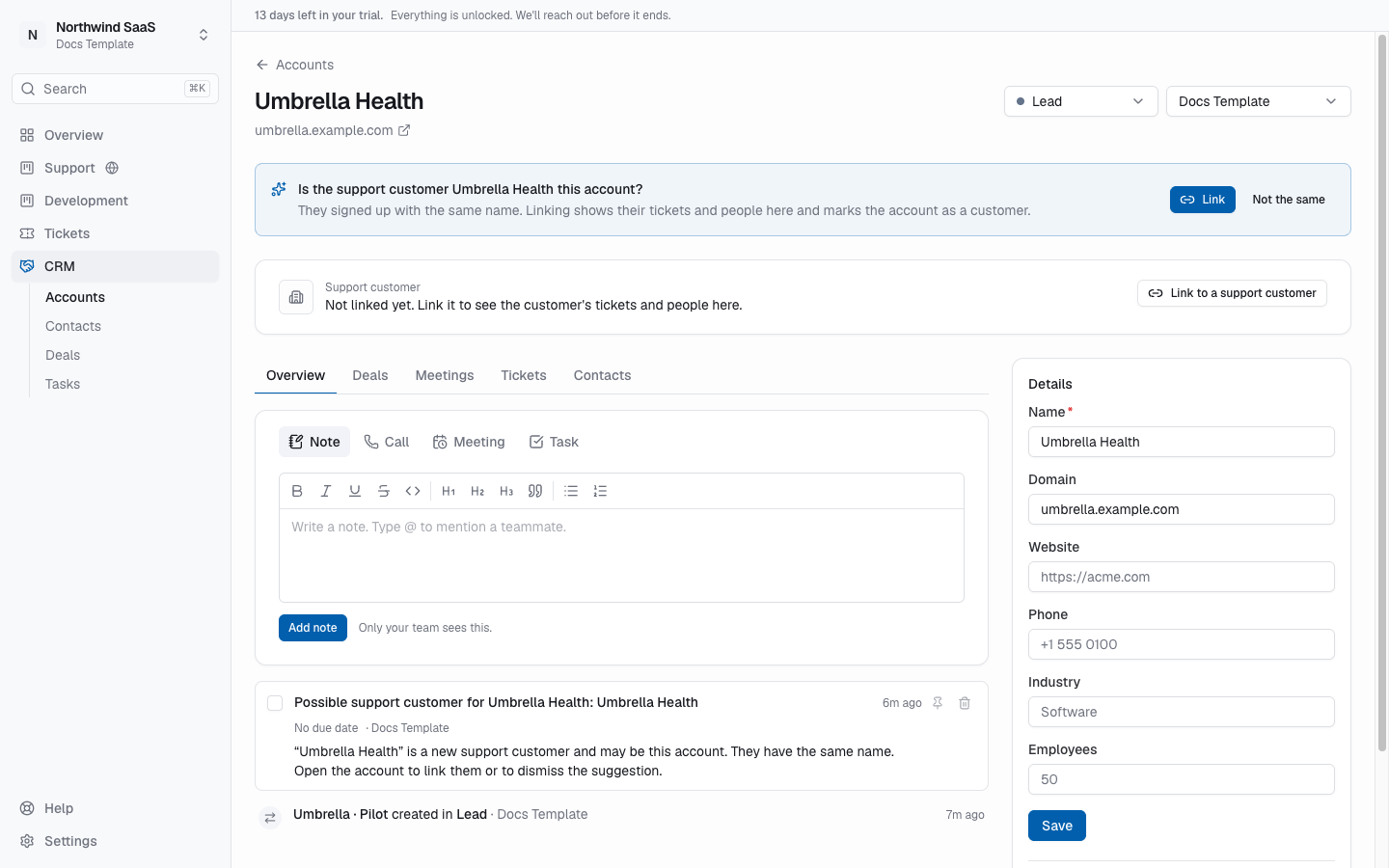
When a support company appears with the same name as an unlinked account, or someone with an email address at an account's domain signs up for a company, the account shows a banner: Is the support customer … this account?
- Link links them, marks the account as a customer and connects people from support to matching contacts.
- Not the same dismisses the suggestion. That pair is never suggested again.
If the account has an owner, they also get a task to look at the suggestion. Suggestions are never acted on automatically, and free-mail addresses (like gmail.com) never lead to one.
Contacts
Open CRM → Contacts, or the Contacts tab of an account. The list shows name, email, accounts, stage, owner, whether the contact is connected to a portal user, and when it was last updated. Filter by search text, stage, owner, account and portal access.
New contact asks for Last name (required), First name, Job title, Stage, Owner, any number of Email addresses (one marked primary) and Phone numbers (each with a label like “Mobile”), plus Accounts and a Primary account. A contact can belong to several accounts.
Delete contact (owners and admins only) removes their name, email and phone number. Past activity stays and is shown as a deleted contact. Their portal access, if any, doesn't change. If the contact is on the newsletter, you also choose whether their subscription stays or is erased too.
Newsletter
When the newsletter is on, a contact's page shows which newsletter lists their email addresses are on, and Add to list puts them on one (you say where their consent comes from). The timeline shows the newsletters they received.
People from support
On a linked account, the Contacts tab has a From support section: people with portal access at the linked company who aren't contacts yet, with their email and portal role.
- Add as contact — creates the contact (or connects an existing contact with the same email, shown as Matches …).
- Add all — does this for everyone in the list.
To have new people join automatically, an owner or admin turns on Add new people from support as contacts in CRM settings. A new portal user whose email already belongs to a contact is always connected to that contact.
Portal access card
A contact's page shows Portal access: the portal user the contact is connected to, or No portal access.
Connect to a portal user links the contact to an existing portal user so you see them as the same person. This only connects the two records — it never gives or takes away portal access. Portal access still comes only from your product, through the host integration, or from a guest portal.
Your own fields
Owners and admins add fields to accounts, contacts and deals — a contract end date, a customer tier — in CRM settings. They show on each record's page, and fields marked Show in list become a column and a filter.