CRM overview
Accounts, contacts and deals next to your support tickets — for your team only.
The CRM keeps track of the companies and people your team sells to or works with: accounts, contacts, deals in pipelines, and the notes, calls, meetings and tasks around them. It sits next to your support desk, so sales sees what support does — and support sees who the customer is.
Staff only
The CRM is for your team. Customers never see it: no account, contact, deal, note or meeting appears in the portal, a guest portal or customer email. A contact is a record about a person — it never gives anyone portal access.
Switch it on
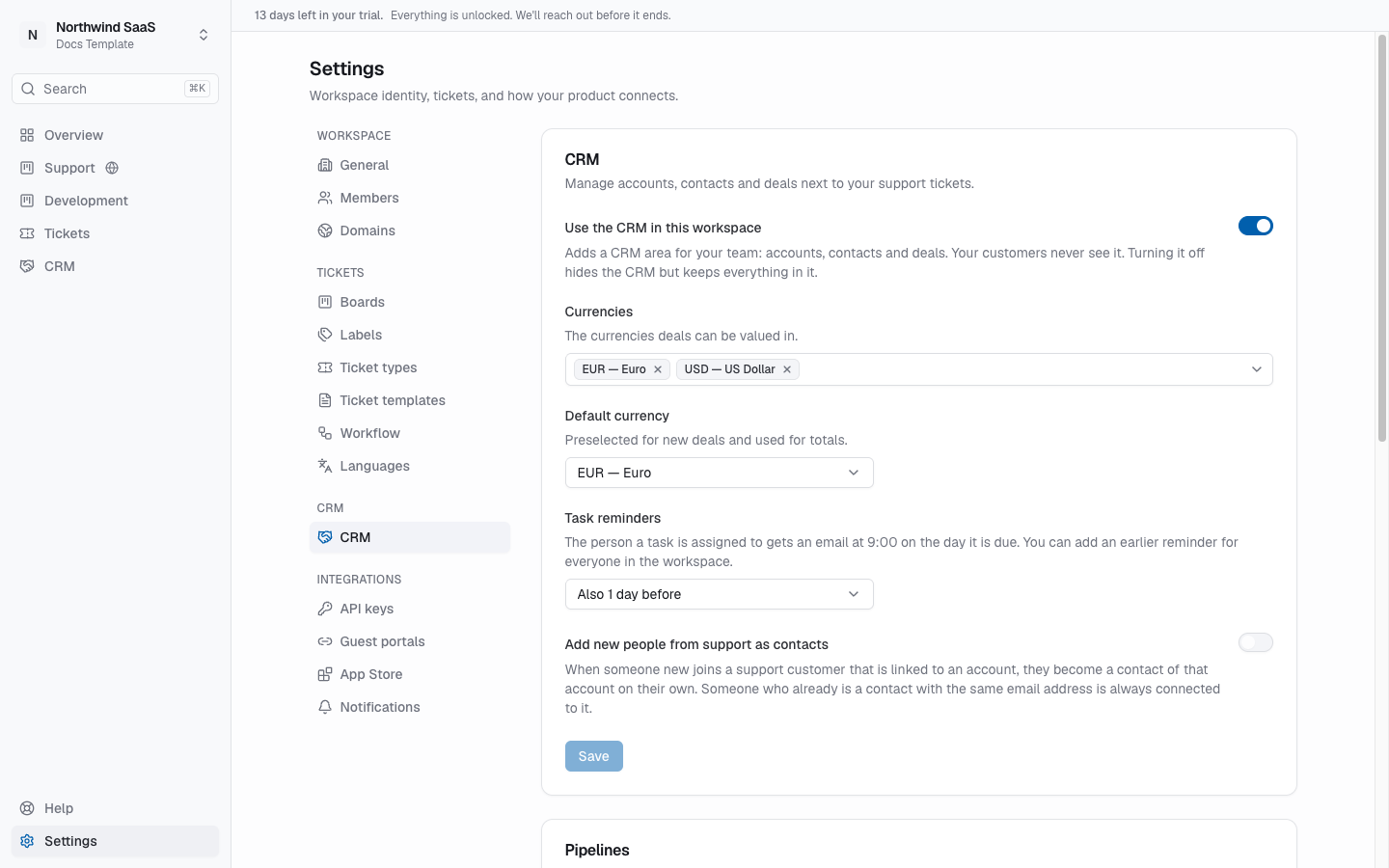
The CRM is an optional module and is off by default. An owner or admin opens Settings → CRM, turns on Use the CRM in this workspace and clicks Save. Turning it off later hides the CRM but keeps everything in it. Details: CRM settings.
Where it lives
Once it's on, the sidebar gets a CRM section (between Tickets and Settings) with:
| Page | What's there |
|---|---|
| Accounts | Companies you sell to or work with, their stage, owner and — once linked — their support tickets. Guide |
| Contacts | The people at those accounts. Guide |
| Deals | What you're selling, on a pipeline board or as a list. Guide |
| Tasks | Your follow-ups, grouped by when they're due. Guide |
| Duplicates | Accounts and contacts that are probably the same, to merge. Owners and admins only. Guide |
A badge on Tasks (or on CRM while you're elsewhere) counts your tasks that are due today or overdue.
How it connects to support
Your support desk already knows your customers as companies with their users (the people with portal access). The CRM keeps its own records next to them and connects the two where it makes sense:
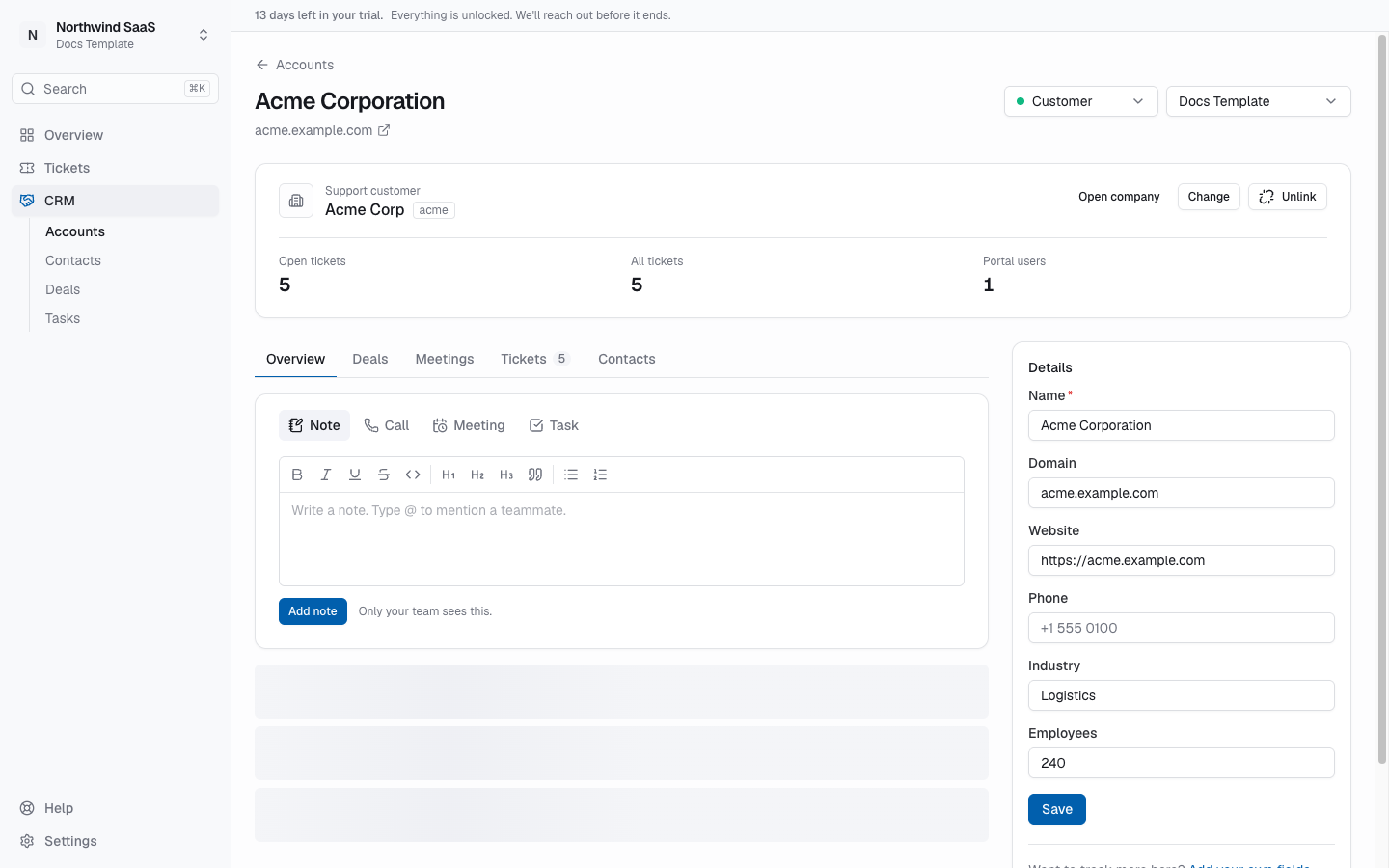
- Link an account to a support customer. One account, one support company. The account then shows that customer's tickets, its portal users and ticket numbers, and its timeline mixes in the tickets they open. Linking marks a lead, qualified or opportunity account as a customer. How to link
- Link suggestions. When a new support company signs up with the same name as an account, or someone with an email address at an account's domain signs up, the account shows a suggestion to link — and its owner, if it has one, gets a task for it. You decide; nothing is linked on its own.
- People from support. On a linked account you can add the customer's portal users as contacts with one click. Optionally, new people joining a linked customer become contacts on their own.
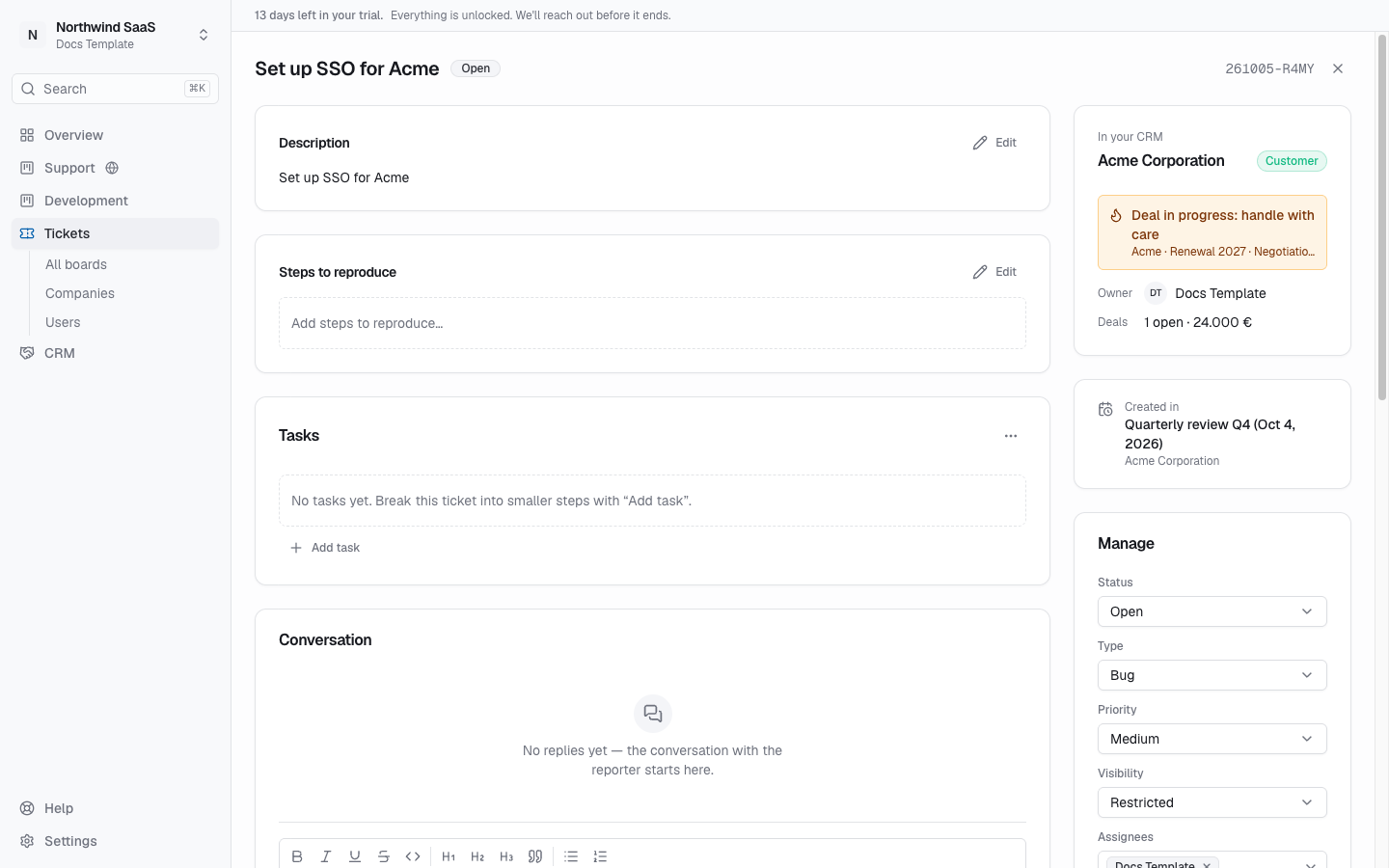
- In the ticket. On a ticket whose company is linked, the sidebar shows an In your CRM card: the account, its stage and owner, open deals — and a warning when a deal is close to signing. See below.
- Meetings turn into tickets. Next steps from a customer meeting become ordinary tickets on the board you pick — shared with the linked customer's portal (on the customer board) or kept internal. Meetings
Nothing in support changes because of the CRM: linking, unlinking or deleting an account leaves the company, its tickets and its portal users exactly as they are.
In the ticket
When the CRM is on and a ticket's company is linked to an account, the ticket sidebar shows a card labeled In your CRM, above Manage:
- The account (click to open it) and its stage.
- The owner and the open deals with their total.
- Deal in progress: handle with care — when an open deal is in a stage with a chance of 70 % or more, or in the last open stage of its pipeline. It names the deal, stage, amount and expected close date.
- The account's pinned note, if there is one.
Tickets created from a CRM meeting also show Created in with the meeting's name and date, linking to the account's meetings.
The card is only on your side. Customers looking at the same ticket in the portal see nothing of it.
Find and create quickly
Press Cmd/Ctrl+K: the search finds accounts, contacts and deals alongside tickets, and offers New account, New contact and New deal, prefilled with what you typed.
Email notifications
With the CRM on, your personal email settings (Settings → Notifications → Email notifications) gain three switches: Mentioned in a CRM note, CRM task assigned to you and Your CRM task is due.
AI agents
Agents connected over MCP can work the CRM too: read and update accounts, contacts and deals, log notes, calls and tasks, record meetings and turn their next steps into tickets. See MCP for agents.
Who can do what
Every member of the workspace can use the CRM: see everything in it, create and edit accounts, contacts and deals, log notes, calls, tasks and meetings, and add files. Owners and admins additionally delete records, edit or delete someone else's notes, calls, tasks and meetings, merge duplicates, import from a spreadsheet, and switch the CRM on and off, edit pipelines and fields. The full list: Members & roles.