Activities, meetings & tasks
Notes, calls, meetings and tasks on accounts, contacts and deals — and tickets from meeting next steps.
Everything your team does with a customer lands in the timeline of the account, contact or deal: notes, calls, meetings and tasks. All of it is for your team only.
The timeline
The timeline is the main part of every account, contact and deal page. Newest entries come first; pinned entries stay on top.
On an account, the timeline also shows:
- Ticket opened … — tickets the linked support customer opens, with their current status.
- Stage changes of the account's deals (“… moved from Qualified to Proposal”).
Each entry can be pinned to the top or deleted. An account's newest pinned note also appears in the In your CRM card on its tickets (details) — so pin what support should know.
Add a note, call or task
Above the timeline, pick a tab:
| Tab | Fields | Button |
|---|---|---|
| Note | Free text. Type @ to mention a teammate | Add note |
| Call | What was it about?, When, Minutes, notes and Outcome | Log call |
| Task | Task, Due, Assigned to (you by default) | Add task |
| Meeting | Opens the meeting form — see Meetings |
Only teammates can be mentioned. A mentioned teammate gets an email (unless they switched it off).
Tasks
Tasks are follow-ups: “Send the offer”, “Check in after the rollout”. They show in the timeline with their due date and assignee; overdue ones are red. Tick the checkbox to mark a task done.
CRM → Tasks lists them, grouped into Overdue, Today, This week and Later (tasks without a date are under Later; weeks run Monday to Sunday). Choose My tasks (default), Everyone's tasks or a teammate. Done tasks are collected in a Done section. Each task links to its account, contact or deal.
The sidebar badge counts your tasks due today or overdue.
Reminder emails
- When someone assigns you a task, you get an email.
- On the due day, the person the task is assigned to gets a reminder at 9:00.
- Owners and admins can add an earlier reminder for everyone — 1 day, 2 days or 1 week before — under Task reminders in CRM settings.
A reminder whose time has already passed when the task is saved isn't sent. Each person can switch these emails off in their own notification settings (CRM task assigned to you, Your CRM task is due).
Meetings
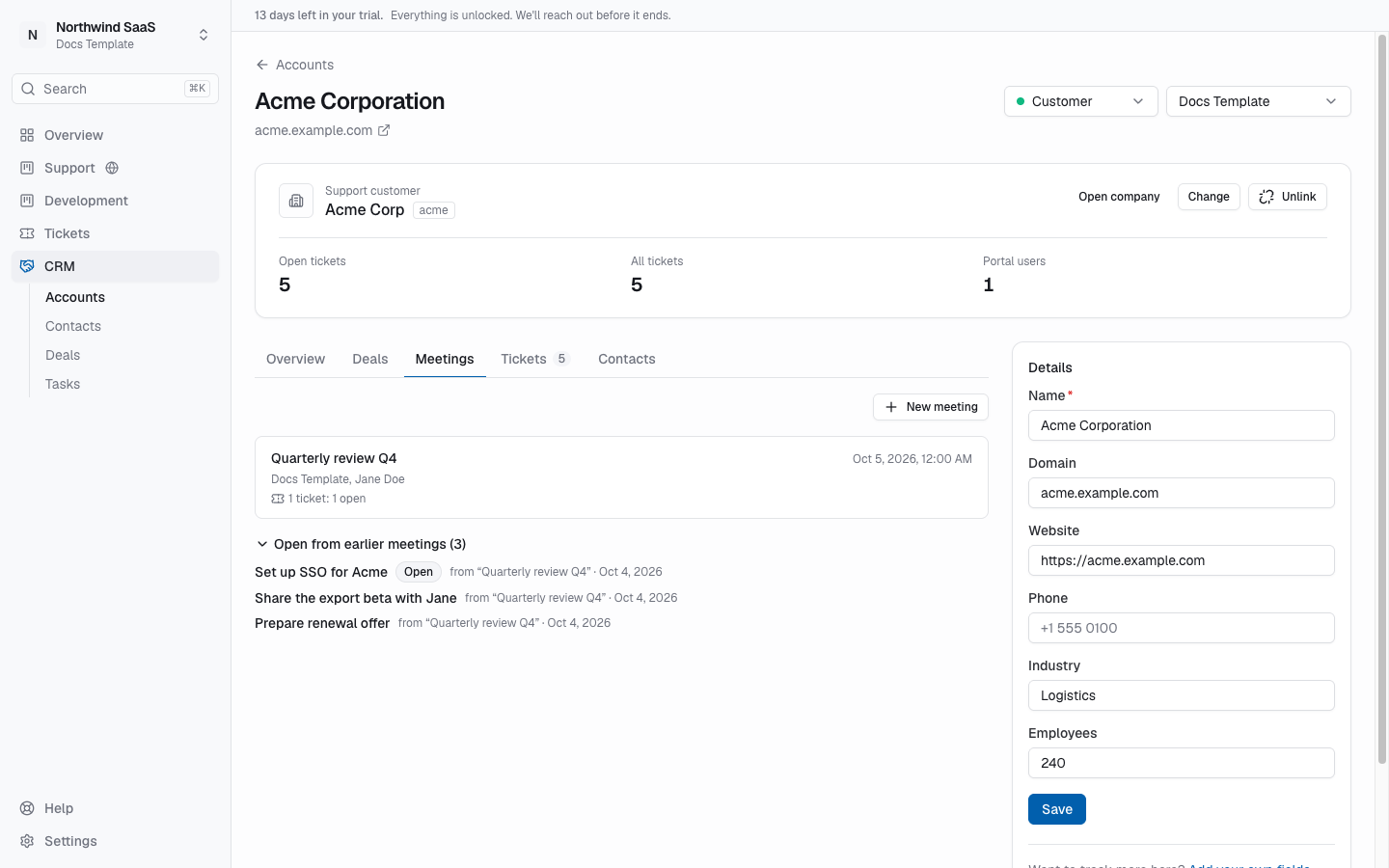
Meetings belong to an account. Open the account's Meetings tab and click New meeting, or use the Meeting tab above a timeline.
Plan a meeting
Title and Starts are required. Add Minutes, a Place or video link, who attends from Their side (contacts) and Your team, and an Agenda.
Open from earlier meetings lists next steps from this account's earlier meetings that aren't done yet. Pick them (or Take over all) to put them on the new meeting's list — they stay linked to their tickets and tasks instead of being copied.
During and after
Open the meeting to write Notes (with @-mentions), Decisions and Next steps — each step with a text, Who and Due. Click Save meeting.
Meetings and their notes are only visible to your team.
Turn next steps into tickets or tasks
Once the meeting is saved, each open step has two buttons:
- Create task — a CRM task for whoever the step is assigned to.
- Create ticket — an ordinary ticket for your team.
Create tickets for all open steps handles every remaining step at once, in one preview.
The ticket form lets you check and edit, per step, the title, type and description, and choose for all of them:
- Where it goes — any board, or one of its groups. Only tickets on the board customers can see (“Support”) can be shared; on any other board the ticket stays internal.
- Priority.
- Sharing — if the account is linked to a support customer, the switch Customers at … will see this ticket in their portal is on by default: the ticket is shared with that customer like any restricted ticket. Switch it off and the ticket stays internal (still counted for that customer). Without a link, tickets are always internal — link the account first to share.
Only the title and description are shared
A shared ticket carries just the title and description you see in the form — check both before you create it. The meeting itself, its notes, decisions and attendees never reach the portal. Mentions in the description are turned into plain names.
If someone else already turned a step into a ticket or task meanwhile, it is skipped and you are told so — you never get two tickets for one step.
See what came of it
- Each step shows its ticket with the live status, or its task and whether it's done. A deleted ticket shows as Ticket deleted.
- The account's Meetings tab shows per meeting how many of its tickets are done or open and how many tasks are finished, and Open from earlier meetings collects everything that isn't done yet — a ready-made agenda for the next meeting.
- On the ticket, your team sees Created in with the meeting's name and date.