Registration
Places and waiting list, the registration form, the people who registered, and invitations.
Everything about who comes to an event: how many places there are, what you ask people, who registered, and whom you invited.
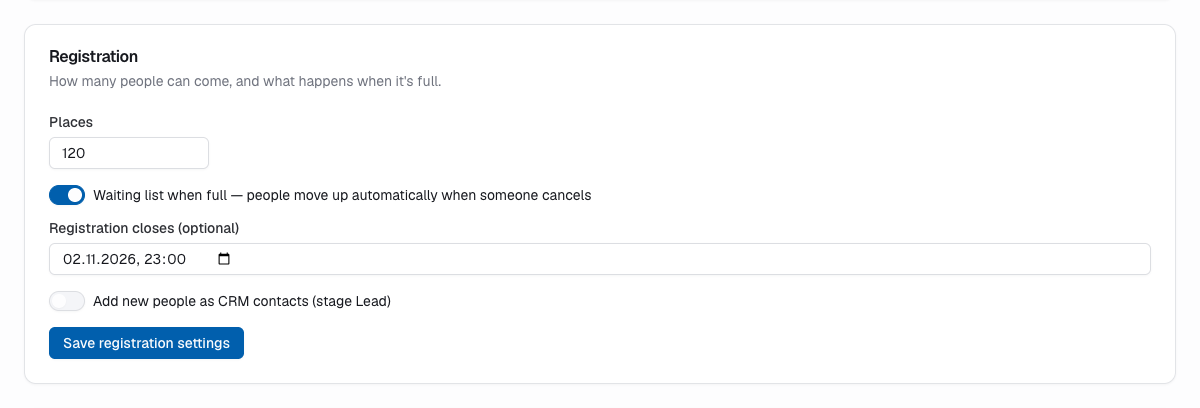
Registration settings
On the event's Plan tab, Registration decides how many people can come and what happens when it's full:
- Places — leave it empty for no limit.
- Waiting list when full — when all places are taken, people join a waiting list. When someone cancels, the next person moves up automatically and is told by email. In the last 24 hours before the start nobody moves up on their own — then you decide with Give a place.
- Registration closes (optional) — after this time nobody can register, even though the event stays published.
- Add new people as CRM contacts (stage Lead) — people you don't know yet become CRM contacts. People who already are contacts are always connected. Only while the CRM is on.
Click Save registration settings.
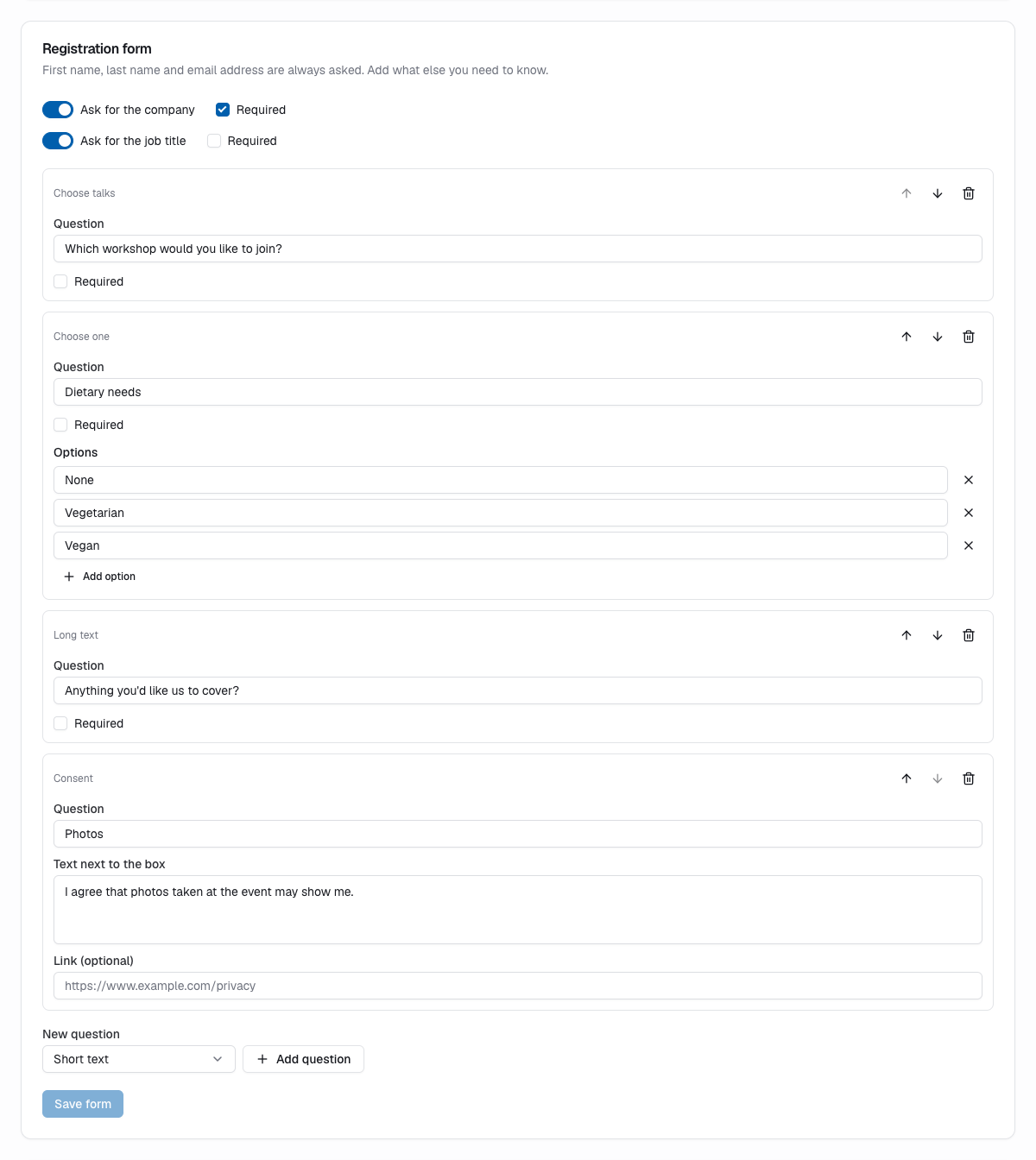
The registration form
Registration form always asks for first name, last name and email address. Switch on Ask for the company and Ask for the job title if you need them — tick Required next to one to make people fill it in — and add your own questions: pick a type under New question, click Add question, and write the question.
| Type | For |
|---|---|
| Short text / Long text | Free answers |
| Email address, Phone number, Number, Date | Answers in a fixed format |
| Choose one / Choose several | Options you list, e.g. dietary needs |
| Checkbox | Yes or no |
| Consent | A required box with your text and an optional link — e.g. photo consent or your privacy policy |
| Choose talks | The talks you marked "People can choose this talk when they register" |
| Newsletter sign-up | An optional box to subscribe to one of your newsletter lists |
Mark questions Required where needed, reorder them with the arrows, remove them with the bin, then click Save form.
Newsletter sign-up (while the newsletter is on): choose the List and, if you like, change the Title above the box. People see the list's consent text next to it. The box is always optional and never ticked in advance. Whoever ticks it gets two emails — the event's and a separate one from the newsletter — and is only subscribed after confirming the newsletter's. Each list can be offered once per form; the box disappears from the event page while the newsletter is off or the list is archived.
Registrations
The Registrations tab lists everyone who registered, with their answers and chosen talks. The line above the list counts the places taken, people awaiting approval, on the waiting list, and who attended. Use the filter to show Everyone, Registered, Awaiting approval, Waiting list or Cancelled or declined.
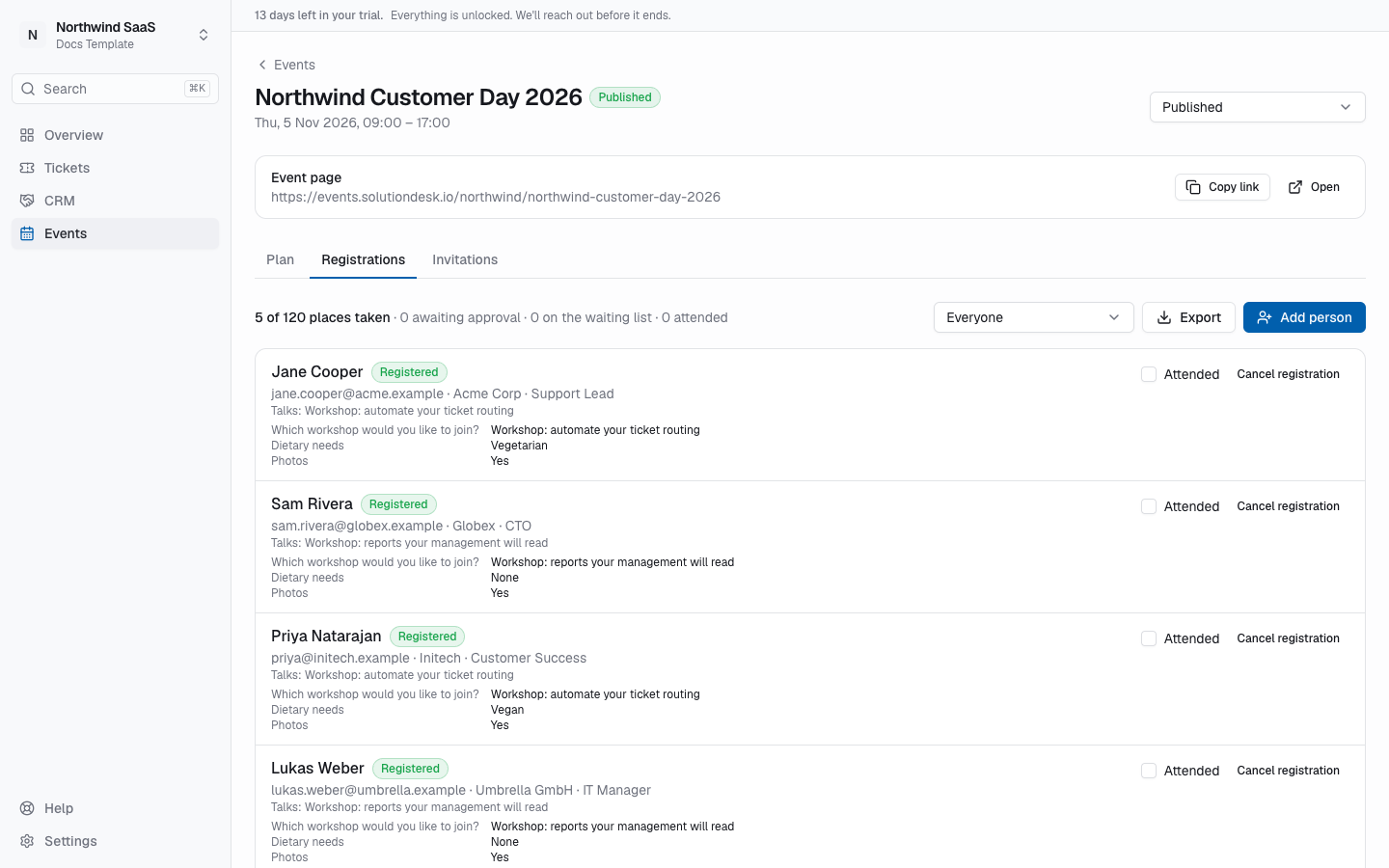
What you can do with a registration:
- Approve or Decline — for events where you approve each registration.
- Give a place — move someone up from the waiting list now, even if that exceeds the number of places.
- Cancel registration — frees the place; the next person on the waiting list moves up.
- Attended — tick who came. It also shows on their CRM contact.
- Add person — register someone yourself, e.g. after a phone call. They get their confirmation email straight away, even when the event is full.
- Export — a spreadsheet (CSV) of the people in the current view.
How people register
- They fill in the form on the event page or on your website.
- They get an email to confirm their address. Until they click it, they're listed as Not confirmed yet and don't take a place.
- After confirming they're Registered, Awaiting approval or on the Waiting list — and get an email saying so.
People who register through their personal invitation link skip step 2. Every email has a link where people see their registration, change their talks or cancel. All of it comes in the language the person registered in, when the event is offered in several languages.
Your email server sends these emails
Registration emails go out through your workspace's own email server (Settings → Notifications). Without one, people can't register.
Invite people
On the Invitations tab, invite people personally:
- From your contacts — search your CRM contacts and pick them.
- Email addresses — one per line, e.g.
Ada Lovelace <ada@example.com>.
Click Invite. Everyone gets an email with a personal link; registering through it needs no extra confirmation. People already invited are skipped.
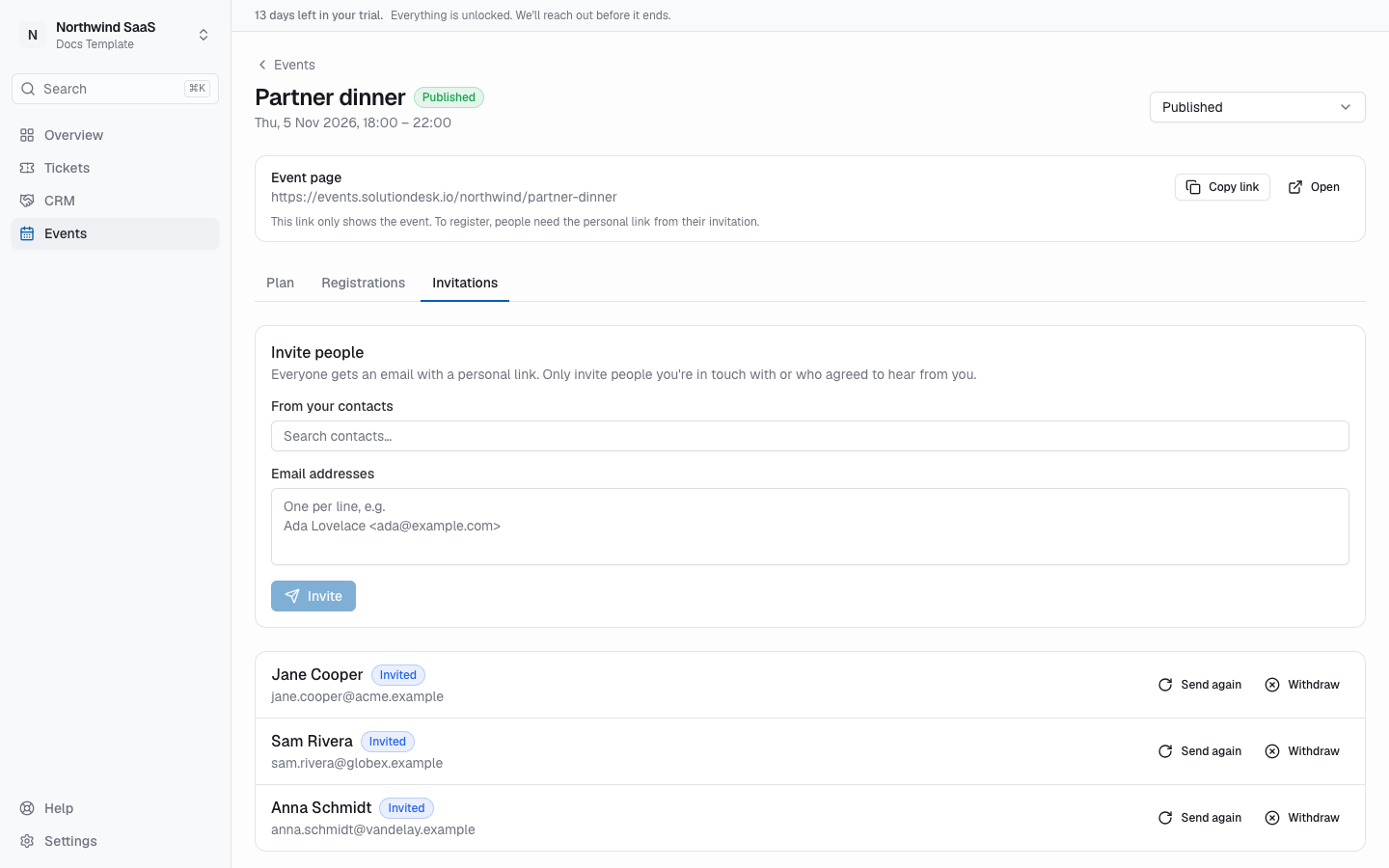
Next to each invitation:
- Send again — sends a new link; the old one stops working.
- Withdraw — the link stops working.
Invitations are the only way to register for events with Only invited people, but you can invite people to any event. Only invite people you're in touch with or who agreed to hear from you.
Related
- Events — create an event and plan the programme
- On your website — the form on your own website
- Event settings — how long registration details are kept