Request detail & replies
Read the thread, reply, download attachments, open full page.
Click a card on the board to open the request.
Layout
- Conversation — public replies from you and the vendor team
- Details sidebar — type, priority, company, created time, custom fields, labels, watchers
- Attachments — download files the vendor (or you) shared
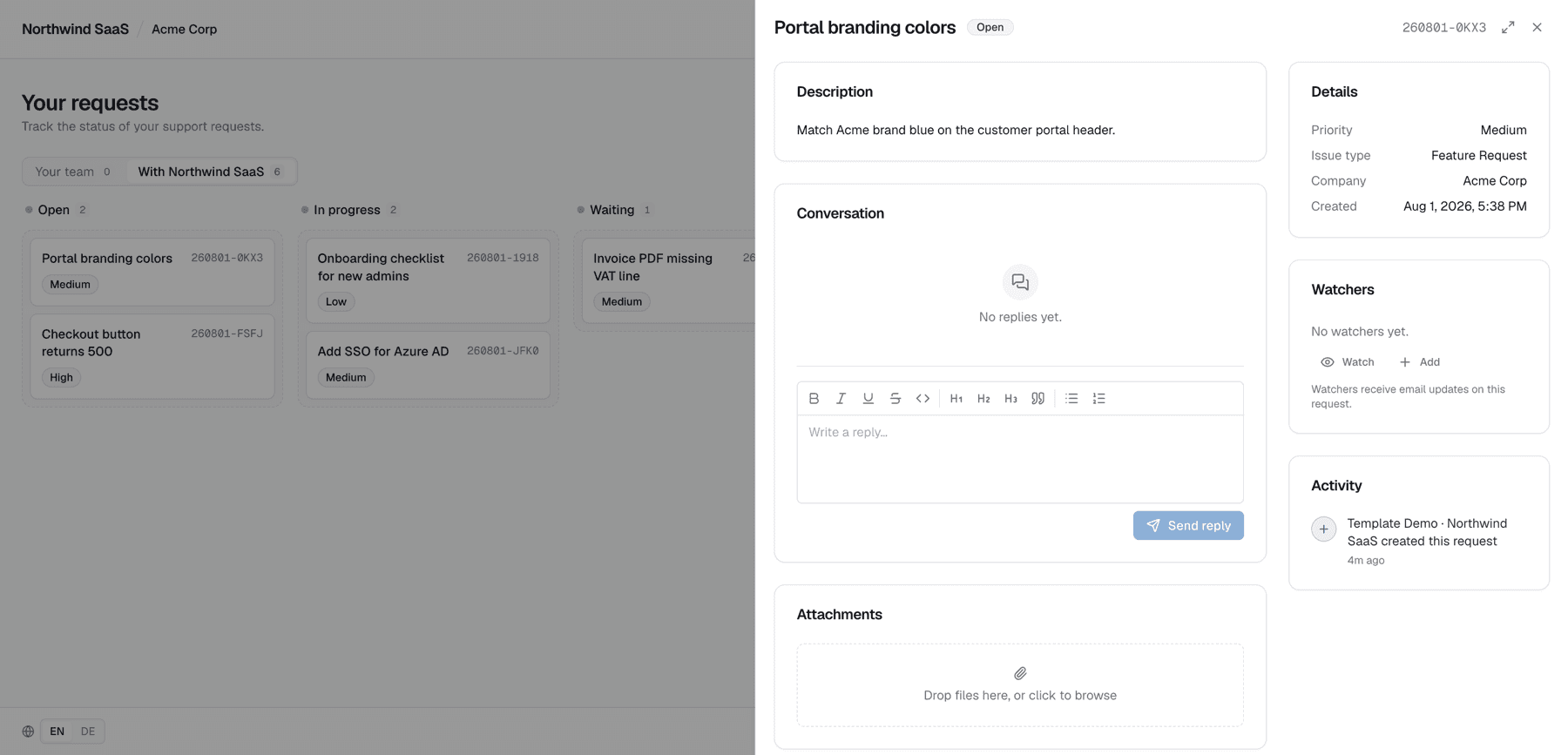
Reply
- Write in the reply box (Antwort schreiben… / Reply…).
- Send (Antwort senden / Send reply).
- The vendor team is notified according to their notification settings.
You only ever post customer-visible comments. There is no internal-note toggle in the portal.
Side peek vs full page
Requests often open in a side panel. Use Als ganze Seite öffnen / Open as full page when you want a dedicated URL or more space.
Escalate (two-tier only)
If the request is still on Your team, a control may offer Escalate (or similar) to hand the same ticket to the vendor. After escalation, provider status becomes vendor-owned. See Two-tier support.
Mentions & watchers
- @mentions notify allowed participants (see Mentions & watchers).
- Watchers in the sidebar subscribe company peers to email updates (not available on guest portals).
Tasks inside a request
A request can contain a Tasks list. Each row is a real ticket with its own number, status, conversation and attachments. Click its title to open it; use Parent ticket to return. The same list appears in the side panel and full page. The progress label, for example 2 of 4 completed, counts tasks you can access. Task lists and board progress refresh automatically while the portal is open. Provider-only or otherwise inaccessible tickets are not disclosed. Archived tasks appear only under an archived request.
Archived requests
When the vendor archives a request, it leaves your board. Turn on Show archived on the board to find it again (see Your request board). An archived request opens read-only: a note at the top says it is archived, and you can read the description, conversation, attachments and activity, but you cannot reply, upload files, change watchers, labels or tasks, or reopen it. For a new issue, create a new request. Links from older notification emails keep working and open the archived request the same way.
Use Add task to create a ticket below the current request. Its type, priority and team/provider context are preselected, and the usual required fields still apply. Customer-created tasks retain the portal's existing restricted visibility rules. A task can have one parent and cannot contain further tasks.
Users who may triage can also Link existing ticket from the menu next to the Tasks heading, using a searchable picker, or Unlink task from a task's own menu to keep the ticket as an independent request. On a task, the bar above the request links back to the parent, shows the parent's progress and steps to the previous or next task. Relationships stay within the same company. Linking a ticket does not grant additional access. Existing role rules still decide who can change a team task's status; provider statuses remain controlled by the provider.
Comments, attachments, watchers and assignments belong to each individual ticket. Closing a parent does not automatically complete its tasks, and completing the last task does not automatically close the parent.
Closing requests with unfinished tasks
The board's workflow may allow closing a parent, ask for confirmation, or block closing while tasks are open. The default is Allow. On two-tier portals, company administrators can override the provider's default for their own team board in Settings → Complete parent tickets with open tasks, or choose Use default to inherit it again. Provider-owned requests use the provider's rule. A status counts as completed when it is marked as a closing status in that ticket's workflow; the rule therefore also works with customized status names.